Your Digital Business Card - How to upload it to your email signature

NB:
1 It is much easier doing this on your computer than trying to do it on your mobile.
2 It is perfectly safe and secure
Option 1: Image + Link (recommended)
Instead of trying to embed the link, you:
Use an image (Blinq logo, QR code, or card-style graphic)
Link the image to your Blinq card URL
This looks like a card and works perfectly when clicked.
Why this is the best solution
Looks professional
Works in all email clients
Click opens your live Blinq card instantly
Option 2: QR code in your signature
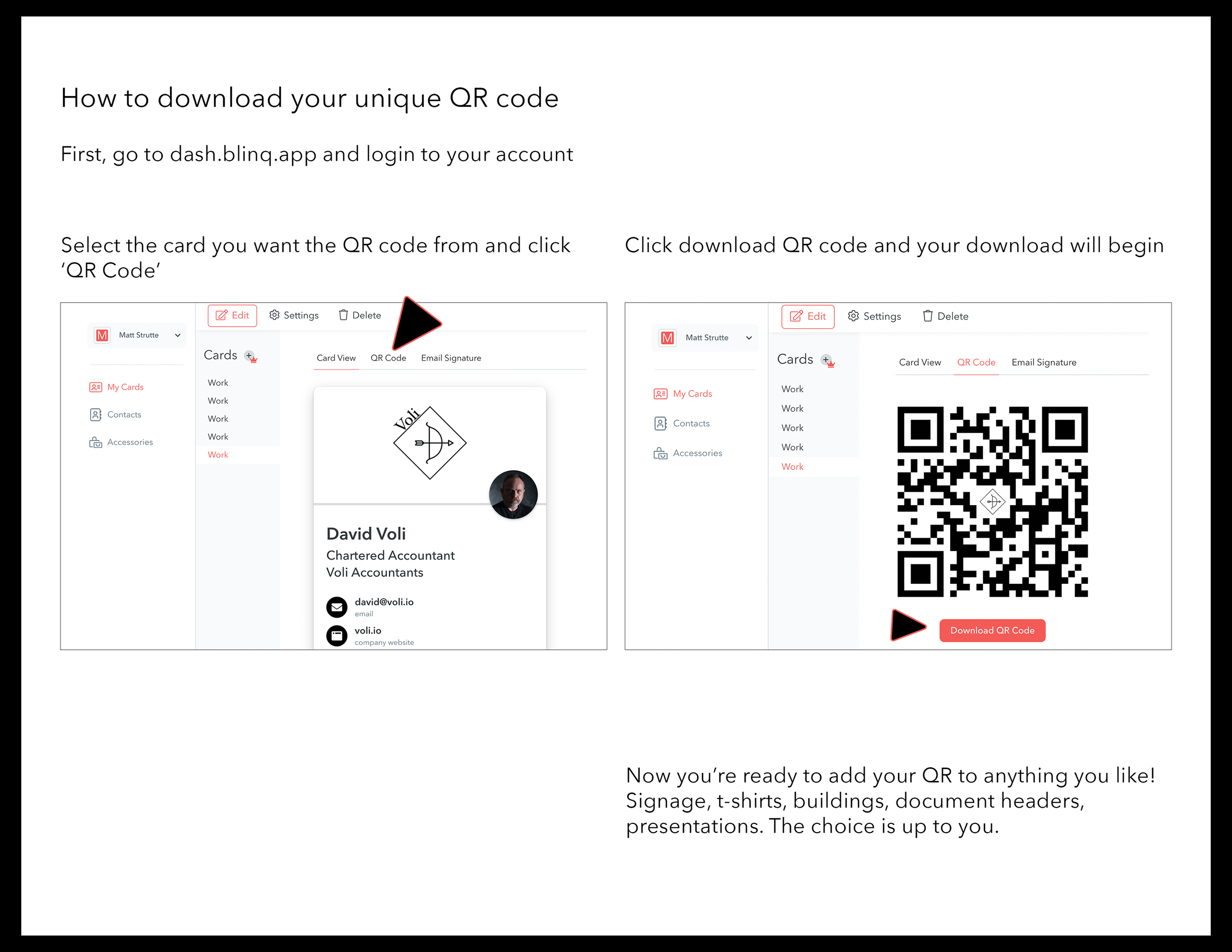
Blinq gives you a QR code for your card.
Insert the QR image into your signature
Link it to the same Blinq URL (optional but smart)
Great for people reading emails on desktop 📱➡️🖥️
How to set it up (quick steps)
Download your Blinq card image or QR code
Open your email signature editor
Insert the image
Highlight the image → Add link
Paste your Blinq card URL
Save
That’s it